
DJI Drones
DJI Phantom 3 Advanced
Here at Tips4U we recently got our hands on the DJI Phantom 3 Advanced (as at May 2017).
We thought we'd show an unboxing of the product. Here's the video with some useful snippets of information.
Useful Checklist before flying your DJI Phantom 3 Advanced
- CHECKLIST FOR WHAT YOU NEED AT THE FLIGHT SITE
It is worth just having that list of things you need with you when you get to the site you're going to fly at. It's all too easy to get there and you've forgotten something (like the cable between the controller and the tablet or phone, or something). Best thing is to always make sure you always leave all the things together (ie we keep ours in the original box we got DJI Phantom in). - NEED YOUR BEST GLASSES?
If you're like us (me), you might have a few different reading glasses dotted around the place. Make sure to remember to take your best pair of glasses with you so that you can see the DJI GO app information as clearly as possible and the views of the Camera or Map are perfectly viewable. - PHONE/TABLET DEVICE SETUP
- put the device volume fully up. You'll have more chance hearing the alerts and alarms from the App (DJI GO).
- put the device display brightness to full on. This really helps, we normally have brightness as low as needed for use indoors so that we don't waste battery life. But outside, especially if it's sunny, it really helps to have full brightness.
- make sure the Display autolock is off. You don't want the display going blank in the middle of a tricky manoeuvre.
- turn off your wifi. This might not be essential but it might be a good idea so that there's less stuff going on, on the phone/tablet.
- KEY STEPS TO TAKE WHEN YOU'RE AT THE FLIGHT SITE
- Take the gimbal guard lock off the Phantom. Always, always do this before turning on the Phantom otherwise you can do the gimbal motor damage as it goes through it's initiation movements as soon as you turn on the Phantom battery.
- put on the propellers. Just do this firmly rather than over tighten them, as the rotation of each motor will ensure they stay firmly in place.
- set up your phone/tablet in it's holder on the Controller.
- turn on the Controller.
- turn on the Phantom battery.
- turn on the phone/tablet.
- start the DJI GO App.
- plug in the cable between the Controller and phone/tablet.
- you're ready to go. From here just follow your normal steps for any flight. We'll be adding these here in the very near future
DJI Mavic Mini
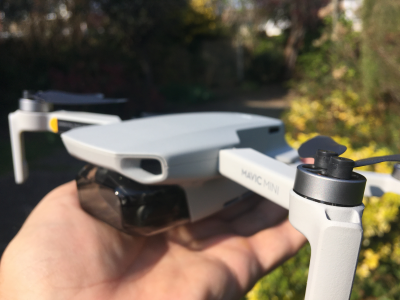 Here at Tips4U we recently got our hands on the DJI Mavic Mini (as at April 2020). In the UK these have been selling like hotcakes since their introduction towards the end of 2019. We'd been looking out for one of these for some time, as a small, light drone appealed to us for quite a few reasons, namely:
|
FIRST IMPRESSIONS
What we really liked:
The usual DJI professionalism. Well packaged, great design, very clever little drone.
Easy to get the DJI Fly app loaded on our old iPhone 5s, and once loaded it's easy enough to get the hang of (there’s lots of videos on YouTube to help learn the basics and delve further into all aspects of the DJI Fly app).
Seems pretty rock solid at keeping its position, both outdoors with GPS on, and even indoors with just the visual positioning system on it.
We thought that with it being so light, anything above a light breeze would make it difficult to fly. But so far, even in a bit more of a breeze it seems to keep a steady hover.
What a fantastic gimbal. The footage so far seems incredibly smooth.
Simple flying and doing videos indoors is even a pleasure.
What we weren’t quite so sure of:
We got the model without the extra batteries, case and blade guards. When we wanted to put the drone in our pocket or even just move it about anywhere, the rotor blades would always be in the way and seem to be at risk of being damaged (you’ll see our tip for how to overcome this elsewhere here.... soon).
The gimbal guard takes a bit of getting used to. To start with, we were sure we were going to break the clips that hold it in place. After a while our technique of securing it got a bit better and we got a bit more confident in removing and putting it on.
The whole thing (drone and controller) feel as though they are a fragile plastic. Time will tell if this is really the case. We guess a big part of it, is the trade off to get the weight under the 250g limit, very clever design and use of materials, that’s for sure.
INDOOR VIDEO FOOTAGE
You do have to be careful flying indoors, especially when you don’t have the blade guards (like us). But we do find flying indoors enjoyable with this little beauty. Here’s some footage of an early flight and a suggestion to anyone having a look in at our website, on whether we give some more information on doing a live voice recording on the video, which we’ve been wanting to have a crack at for some time.
Useful Checklist before flying your DJI Mavic Mini
- CHECKLIST FOR WHAT YOU NEED AT THE FLIGHT SITE
It is worth just having that list of things you need with you when you get to the site you're going to fly at. It's all too easy to get there and you've forgotten something (like the cable between the controller and the tablet or phone, or something). Best thing is to make sure you always leave all the things together (ie we keep ours in the original box we got DJI Mavic Mini in). - NEED YOUR BEST GLASSES?
If you're like us (me), you might have a few different reading glasses dotted around the place. Make sure to remember to take your best pair of glasses with you so that you can see the DJI Fly app information as clearly as possible and the views of the Camera or Map are perfectly viewable. - PHONE/TABLET DEVICE SETUP
- put the device volume fully up. You'll have more chance hearing the alerts and alarms from the App (DJI Fly).
- put the device display brightness to full on. This really helps, we normally have brightness as low as needed for use indoors so that we don't waste battery life. But outside, especially if it's sunny, it really helps to have full brightness.
- make sure the Display autolock is off. You don't want the display going blank in the middle of a tricky manoeuvre.
- turn off your wifi. This might not be essential but it might be a good idea so that there's less stuff going on, on the phone/tablet.
- KEY STEPS TO TAKE WHEN YOU'RE AT THE FLIGHT SITE
- Take the gimbal guard lock off the Mavic Mini. Always, always do this before turning on the Mavic Mini otherwise you can do the gimbal motor damage as it goes through it's initiation movements as soon as you turn on the Mavic Mini battery. (this may not be essential, but was something we really had to do with the older Phantom drone we had. The gimbal cover on the Mavic Mini may not stop the movement of the gimbal, but we think it's a good idea to remove that guard).
- turn on the phone/tablet.
- set up your phone/tablet in it's holder on the Controller.
- plug in the cable between the Controller and phone/tablet as you're putting the phone/tablet in it's holder on the Controller.
- start the DJI Fly App.
- turn on the Mavic Mini battery.
- turn on the Controller
- you're ready to go. From here just follow your normal steps for any flight. We'll be adding these here in the very near future
Tips4U - How to secure your DJI Mavic Mini blades
When we first opened the box for our new DJI Mavic Mini we were quite suprised at the blades simply being held in place with a loop of plastic paper with a sticky end. After taking this off we thought, OK, we can just keep putting these around the blades when the drone's not in use. However, after a quick bit of research we found there were some things on the market to hold them a bit more securely.
Here at Tips4U we thought, lets do a really simple solution. Here's a video of how we thought to do it on the cheap with elastic bands.